
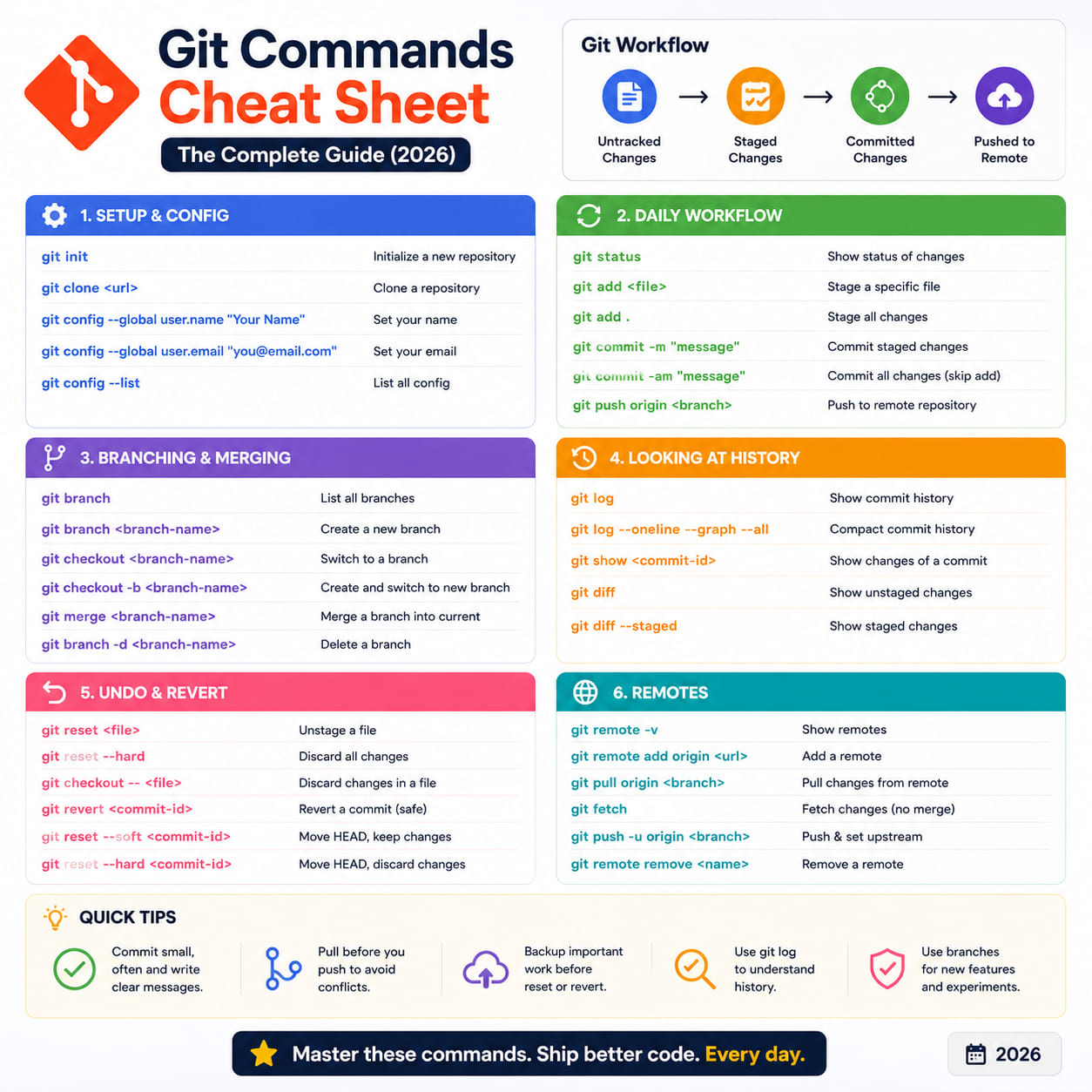
Git Commands Cheat Sheet: The Complete Guide

Every command here comes with a one-line explanation — no digging through man pages mid-standup. Bookmark it, skim it, or search this page (Ctrl+F) when you forget a flag.

1. Setup & Config

Runs once when you set up Git on a new machine.

bash
git config --global user.name "Tushar Modi"      # sets your commit author name
git config --global user.email "[email protected]" # sets your commit author email
git config --global init.defaultBranch main      # makes 'main' the default branch for new repos
git config --list                                # shows all current config values
2. Starting a Repository
bash
git init                    # turns the current folder into a Git repo
git clone <url>             # downloads a full copy of a remote repo
git clone <url> <folder>    # clones into a custom folder name
3. Day-to-Day Commands

The ones you'll type dozens of times a day.

bash
git status              # shows what's changed, staged, or untracked
git add <file>           # stages one file for the next commit
git add .                # stages everything that's changed
git add -p               # lets you stage changes in small chunks, interactively
git commit -m "msg"      # saves staged changes as a new commit
git commit -am "msg"     # stages + commits all tracked file changes in one step
git diff                 # shows unstaged changes line by line
git diff --staged        # shows staged changes vs the last commit
git rm <file>            # deletes a file and stages the deletion
git mv old new           # renames a file and stages the rename
4. Branching
bash
git branch               # lists your local branches
git branch -a            # lists local + remote branches
git branch <name>        # creates a new branch (doesn't switch to it)
git checkout -b <name>   # creates a branch and switches to it immediately
git switch -c <name>     # same as above, using the newer Git syntax
git branch -d <name>     # deletes a branch (blocks if unmerged)
git branch -D <name>     # force-deletes a branch, even if unmerged
5. Merging & Rebasing
bash
git merge <branch>       # merges another branch into your current one
git merge --no-ff        # forces a merge commit, even if a fast-forward was possible
git rebase <branch>      # replays your commits on top of <branch> for linear history
git rebase -i HEAD~3     # lets you edit/squash/reorder your last 3 commits
git rebase --continue    # resumes a rebase after fixing a conflict
git rebase --abort       # cancels the rebase and goes back to where you started

Quick rule: merge preserves exactly what happened. Rebase rewrites your branch for a cleaner history. Use rebase only on branches nobody else is pulling from.

6. Remotes
bash
git remote -v                      # lists connected remote repos
git remote add origin <url>        # connects your repo to a remote
git fetch                          # downloads changes without merging them
git pull                           # fetches + merges in one step
git pull --rebase                  # fetches + rebases instead of merging
git push                           # uploads your commits to the remote
git push -u origin <branch>        # pushes and links this branch to track the remote one
git push origin --delete <branch>  # deletes a branch on the remote
7. Inspecting History
bash
git log                          # shows full commit history
git log --oneline                # compact, one line per commit
git log --oneline --graph --all  # visual graph of all branches
git show <hash>                  # shows full details of one commit
git blame <file>                 # shows who last changed each line, and when
8. Undoing Changes

The commands people search for at 1 AM.

bash
git restore <file>            # discards unstaged changes to a file
git restore --staged <file>    # unstages a file, keeps the actual changes
git reset --soft HEAD~1        # undoes the last commit, keeps changes staged
git reset --mixed HEAD~1       # undoes the last commit, keeps changes unstaged
git reset --hard HEAD~1        # undoes the last commit and DELETES the changes — be careful
git revert <hash>               # makes a new commit that safely undoes an old one (safe on shared branches)
git clean -fd                  # deletes untracked files and folders permanently
9. Stashing

Temporarily shelves work without committing it.

bash
git stash                 # shelves your current changes
git stash -u               # also shelves untracked files
git stash list              # lists all your stashes
git stash pop                # reapplies the latest stash and removes it from the list
git stash apply               # reapplies the latest stash but keeps it in the list
git stash drop                 # permanently deletes the latest stash
10. Tags
bash
git tag                        # lists existing tags
git tag v1.0.0                  # creates a simple tag
git tag -a v1.0.0 -m "notes"     # creates a tag with a message (annotated)
git push origin v1.0.0            # pushes one specific tag
git push origin --tags             # pushes all local tags
11. Cherry-Picking
bash
git cherry-pick <hash>        # copies one specific commit onto your current branch
git cherry-pick --continue    # resumes after resolving a conflict mid-cherry-pick
12. Rescue Commands

For when something feels permanently broken (it usually isn't).

bash
git reflog                       # shows a log of EVERYTHING you've done, even resets and rebases
git reset --hard <reflog-hash>    # jumps back to any point captured in the reflog
git fsck --lost-found              # finds commits that got orphaned but still exist
git bisect start                    # begins a binary search to find which commit broke something
git bisect good <hash>               # marks a commit as known-good during bisect
git bisect bad                        # marks the current commit as broken during bisect
git bisect reset                       # ends the bisect session

git reflog is the one to remember above all else — almost nothing in Git is truly lost until garbage collection actually runs.

13. Useful Aliases

Add these to ~/.gitconfig to save keystrokes permanently.

bash
git config --global alias.st status                        # git st
git config --global alias.co checkout                       # git co
git config --global alias.br branch                          # git br
git config --global alias.lg "log --oneline --graph --all"    # git lg

Print this, bookmark it, or just remember git reflog exists — it's the one command that turns a full panic into a two-minute fix.